
SSL & HTTPS Setup
Overview
Kontenum supports two ways to enable HTTPS:
-
Manual Certificate Upload
Upload an existing SSL certificate issued by any trusted Certificate Authority.
-
Automatic HTTPS (ACME / Let’s Encrypt)
Let Kontenum automatically issue and renew certificates for your delivery domain.
Both methods result in certificates being managed centrally under Certificate Management.
Uploading an SSL Certificate (Manual)
Navigate to:
Certificates → Certificate Management → Upload Certificate
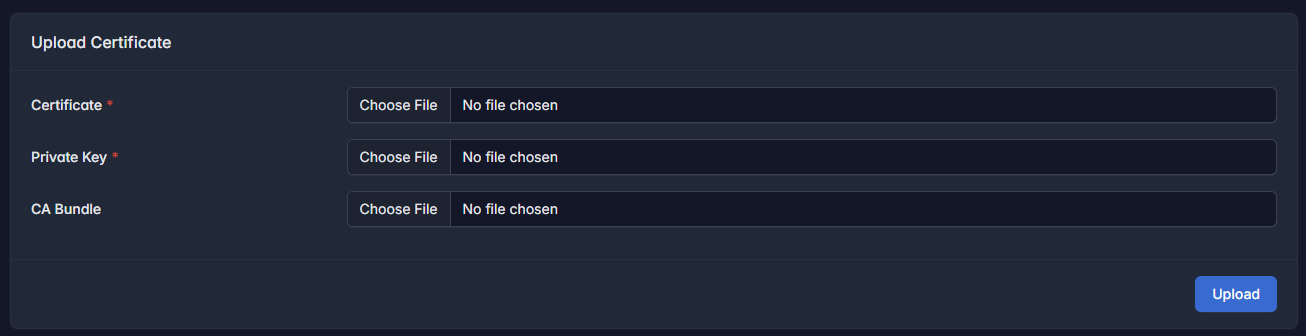
Required Fields
You will see three input fields:
-
Certificate (required) The public certificate file (usually
.crtor.pem). -
Private Key (required) The private key that matches the certificate.
-
CA Bundle (optional but strongly recommended) The intermediate certificate chain provided by your Certificate Authority.
Why CA Bundle Is Important
Although Kontenum automatically validates certificates against public root CAs, uploading the full CA bundle is highly recommended because:
- Some operating systems or browsers may have missing or outdated root CAs
- Incomplete chains may cause browsers to show “Not Secure” warnings
- Enterprise environments often rely on explicit intermediate chains
Best practice: Always upload the full certificate chain (certificate + intermediates).
After uploading, click Upload. The certificate will appear in the certificate list.
Certificate Management & Status
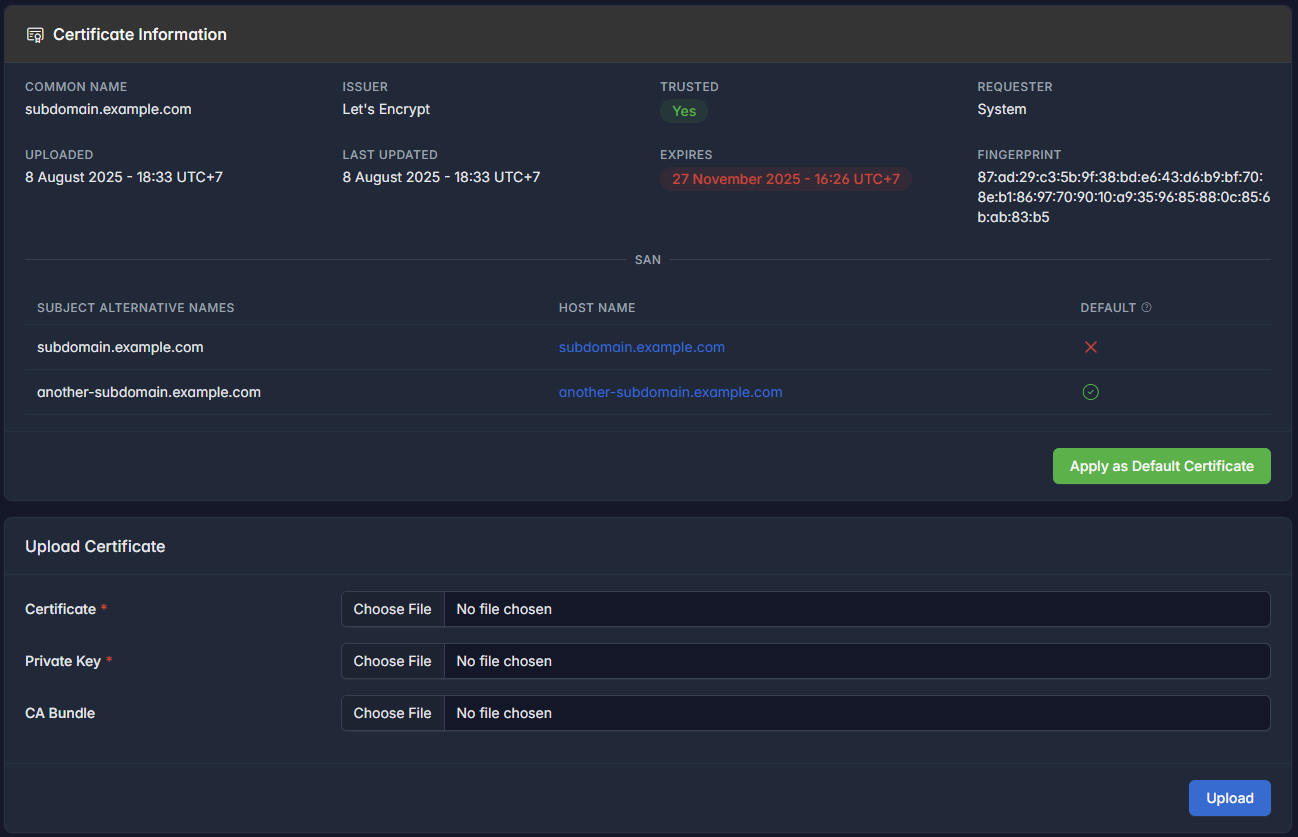 After uploading (or selecting an existing certificate), you will see detailed certificate information:
- Common Name (CN)
- Subject Alternative Names (SANs)
- Issuer (e.g. Let’s Encrypt)
- Expiration date
- Trust status (validated against public CAs)
- Fingerprint
You can also:
- Assign the certificate to one or more hostnames
- Mark a certificate as Default for eligible domains
- Replace or re-upload certificates before expiration
Certificate Expiration Reminder
Kontenum automatically monitors certificate expiration and sends reminder emails at:
- 30 days before expiration
- 14 days before expiration
- 7 days before expiration
- 1 day before expiration
These notifications are sent to the account email to help you avoid service disruption.
Automatic HTTPS with DNS-01
Kontenum uses Let’s Encrypt to issue and renew free SSL certificates. From 28 September 2026, new Free SSL activations use DNS-01 validation, including when you enable it on an older site.
DNS-01 checks a DNS record instead of requesting a page through your site. Your site's ACL and georestriction rules therefore do not block this validation.
Before You Start
- Save your site with one non-wildcard custom domain, such as
cdn.example.com. Save any domain changes before using the ACME controls. - Keep the existing delivery CNAME pointing to your Kontenum Site CNAME. DNS validation needs an additional CNAME, not a replacement for that delivery record.
- Make sure you can edit the domain's records at its DNS provider.
Free SSL is off by default. DNS setup instructions appear after you enable it on a saved site.
Enable Free SSL and Add the CNAME
- Open the site's settings and enable Automatic HTTPS Protection → Free SSL Certificate from Let’s Encrypt. This saves the activation immediately and performs an initial DNS check.
- In DNS validation, copy CNAME name and CNAME target using their Copy buttons.
- At your DNS provider, add a CNAME with exactly those values. Leave the delivery CNAME in place.
- Save the DNS record, return to the dashboard, and click Check DNS.
- If it remains Awaiting CNAME, confirm the record, allow time for DNS propagation, and click Check DNS again. If the lookup itself fails, the dashboard shows Unable to check DNS; try again without assuming the record is incorrect.
- Once Verified, certificate processing continues automatically when a certificate is needed. Keep the CNAME in place for future renewals.
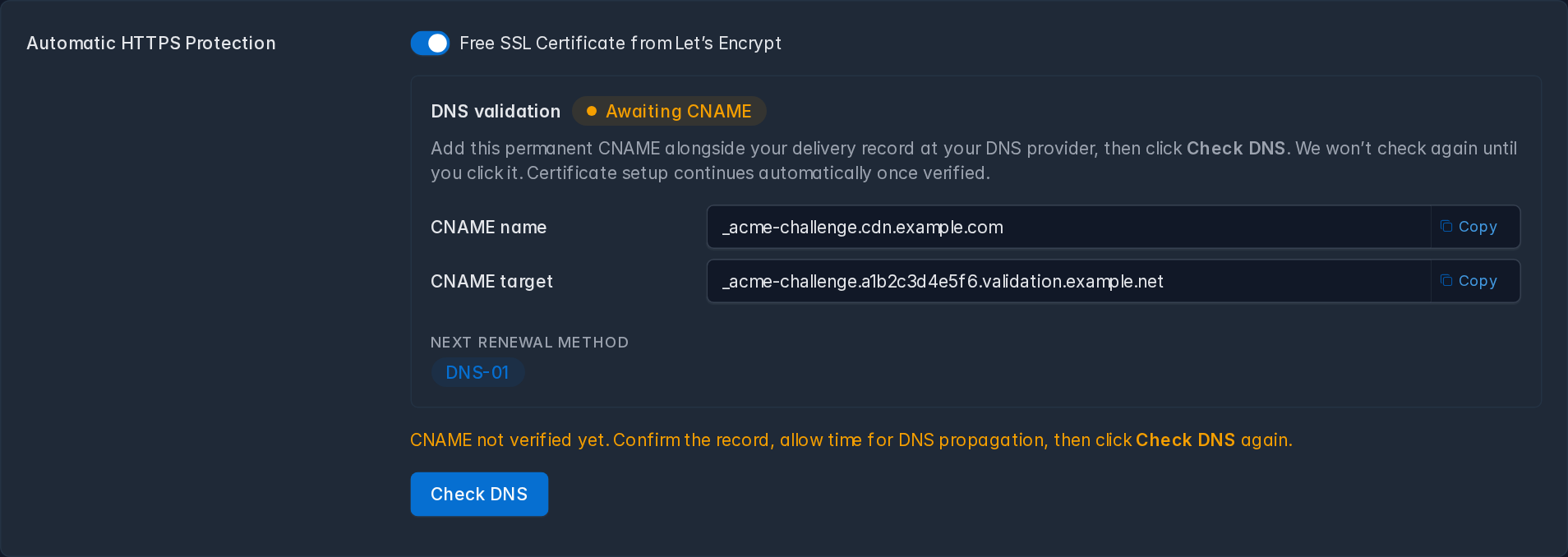
Example using sample data. Copy the values from your own site's dashboard, not from this screenshot or the table below.
| Domain | Record type | Target domain |
|---|---|---|
_acme-challenge.cdn.example.com |
CNAME | _acme-challenge.a1b2c3d4e5f6.validation.example.net |
Scroll the table horizontally if needed to see the target domain.
Some DNS providers append your zone name automatically. For a zone named example.com, the name field may therefore expect _acme-challenge.cdn. Check that the resulting full record name matches CNAME name in the dashboard. The record must publicly resolve to the displayed CNAME target. Kontenum manages the temporary TXT challenge; you do not need to create that TXT record yourself.
Understand the Status and Next Action
Free SSL activation, DNS verification, and the installed certificate are separate states. Verified confirms the delegation CNAME; it does not mean a certificate has already been issued. Check the processing status and installed certificate information separately.
| What the dashboard shows | What to do |
|---|---|
| Awaiting CNAME during initial setup | Add or correct the record, allow propagation, then click Check DNS. |
| Verified and certificate processing in progress | Wait for processing to finish. Keep the CNAME. |
| Automatic retry scheduled for … | Wait for the scheduled retry; no manual action is available while processing continues. |
| Issuance failed and automatic retries stopped | Use Retry certificate, or Check DNS and retry if DNS verification is needed. |
| Expired and no request is running | Use Renew certificate, or Check DNS and renew, as shown. |
| Setup maintenance needs attention | Use Retry setup when shown. This finishes pending cleanup; it does not enable Free SSL. |
An installed certificate remains displayed during renewal problems. A failure email is a reminder to review the site; it does not always mean your CNAME is wrong. If DNS is already Verified and issuance still fails after retrying, contact support with the site name and displayed error.
Move an Existing HTTP-01 Site to DNS-01
Leave Free SSL enabled - you do not need to switch it off and on. Add the additional CNAME from the DNS validation panel. You can click Check DNS to verify it now; otherwise, eligible legacy sites are checked when their renewal is scheduled.
For a healthy site, verification selects DNS-01 for the next scheduled renewal without requesting an early replacement certificate. An HTTP-01 order already in progress keeps its original method; Current order method and Next renewal method can therefore differ temporarily.
Add the CNAME before 27 November 2026 to keep automatic renewal available. Migration reminders may be sent up to five times per site: at launch, with 30, 14, and 7 days remaining, and at retirement. An existing certificate is not removed by migration or retirement, but HTTPS can fail if it expires before a successful renewal.
Automatic HTTPS with HTTP-01 - Deprecated
Legacy Setup
Before the DNS-01 launch, customers enabled Automatic HTTPS Protection → Free SSL Certificate from Let’s Encrypt in Site settings. The system then created an order, validated the domain over HTTP, generated the certificate request (CSR), and installed the certificate.

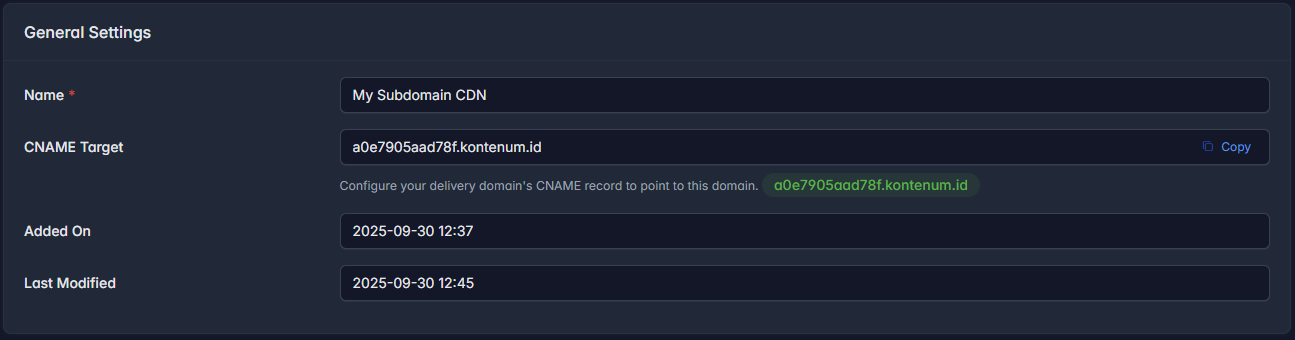
Legacy HTTP-01 screen. Use the DNS-01 instructions for new activations.
Legacy Validation Requirements
Existing HTTP-01 validation requires:
- One non-wildcard delivery domain that is already active.
- A delivery CNAME pointing to your Kontenum Site CNAME.
- Public HTTP access to the validation request. ACL or georestriction rules can prevent HTTP-01 validation.
If these prerequisites are not met, validation can fail and stop after its retry limit. Follow the recovery action displayed in Site settings.
Legacy sites can continue HTTP-01 renewals during the migration period if DNS-01 delegation is not ready. From 27 November 2026, no new HTTP-01 orders are created; existing orders may finish. Installed certificates are not revoked or removed on that date and retain their own expiration dates.
Automatic Renewal
For eligible sites with Free SSL enabled, automatic renewal is scheduled around 7 days before expiration. Keep both the delivery CNAME and validation CNAME in place. A site already using DNS-01 does not fall back to HTTP-01 if its validation CNAME is removed.
Normally no manual action is needed while configuration is valid and processing succeeds. If issuance stops, a failure email may be sent to your company's contact person (PIC). Review the dashboard and use the recovery action shown; stopped requests do not retry indefinitely. An existing certificate remains installed during a renewal attempt, and DNS verification alone does not extend its expiration date.
ACME Certificates in Certificate List
All certificates issued via ACME:
- Appear in the Certificate Management list
- Are treated the same as manually uploaded certificates
- Can be viewed, assigned, or replaced like any other certificate
This ensures consistent management across all SSL methods.
Best Practices
- Use ACME for simplicity and automatic renewal whenever possible
- Upload full CA bundles for manually managed certificates
- Monitor expiration emails and renew early if managing certificates manually
- Avoid wildcard delivery domains if you want automatic HTTPS
If you encounter validation or trust issues, verify DNS configuration and certificate chain completeness before contacting support.